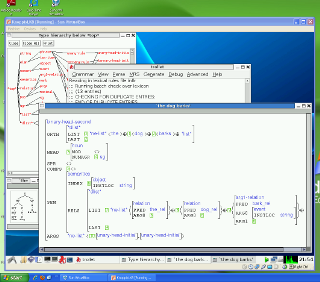
<img width="320" alt="Small screen shot" align="right" src="https://wiki.ling.washington.edu/pub/Main/KnoppixLKBVirtualBox/virtualboxscreenshot-small.PNG" title="Screen shot" height="282" /> ---+ Running [[KnoppixLKB][Knoppix+LKB]] Under !VirtualBox !VirtualBox is a way to run Linux (or other operating systems) inside a window under OS X or Windows. It provides a convenient way of running Knoppix+LKB without having to reboot, and may work on hardware that Knoppix+LKB does not support directly. It is, however, likely to be slower than running directly off CD. It's free for personal or educational use. ---++ Setup instructions 1 Visit [[http://www.virtualbox.org/][VirtualBox.org]] and download the binary version for your operating system. You will need version 2.2.2 or later for Knoppix+LKB to function properly. Install !VirtualBox on your system using the provided installer. The default installation settings will work fine. *Note:* On Windows Vista you will be prompted several times to install drivers. You can bypass these prompts by checking "Always trust software from Sun Microsystems" before clicking "Install" at the first prompt. On Windows XP you will get several warnings that the software has not passed Windows Logo testing; click "Continue Anyway" when these appear. 1 If you haven't already, download one of the [[KnoppixLKB][Knoppix+LKB]] ISO images. You do _not_ need to burn the .iso file to CD. I recommend using version 8 or later because these versions support mouse pointer integration and window resizing in !VirtualBox. 1 Run !VirtualBox. Click "New" to open the Create New Virtual Machine wizard. 1 Give the new virtual machine a name, and choose "Linux" for the operating system and "Debian" for the version. 1 The default base memory size of 256 megabytes will be enough to get started. If you work with complex grammars you will probably need to increase this later. 1 On the Virtual Hard Disk screen, uncheck the Boot Hard Disk box. When you click "Next" a warning dialog will appear; click "Continue." 1 After clicking the Finish button, you should see your new virtual machine listed. However, it's not ready to boot yet -- we need to tell it about the Knoppix+LKB CD image. 1 Click "File", "Virtual Media Manager". 1 Select the "CD/DVD Images" tab. 1 Click "Add". Browse to the file you downloaded in step 2, and click "Open". Click "OK" to close the Virtual Media Manager. 1 If you are using Virtual Box 3.1.2, read steps 12 and 13. Else, continue onto step 14. 1 Click on "Storage" in the right pane. 1 Underneath the IDE drop-down, there should be an empty slot. There, you go to "CD/DVD Device" and in the drop-down menu, select your disk image for KNOPPIX. Hit "OK". Proceed to step 16. 1 Select your new virtual machine in the left pane of the main VirtualBox window. Click "CD/DVD-ROM" in the right pane. 1 Check "Mount CD/DVD Drive" and "ISO Image File". Make sure the .iso file you downloaded is selected in the drop-down box. Click "OK" to close the Settings dialog. 1 _Optional:_ You may want to create a shared folder so you can copy files between Knoppix and your host operating system. To do this, click "Shared Folders" in the right pane (you'll have to scroll down a little to see it.) Click the icon with a plus sign at the right side of the dialog box, then select "Other..." from the Folder Path drop-down list and choose the folder you want to share. Enter a name for the shared folder in the Folder Name box; to make things easier later, use a name that does not contain spaces. Remember this name because you'll need it later. 1 Click "Start" to boot your new virtual machine. Knoppix+LKB should load in a window. If you set up a shared folder, look in the "Usage Notes" file on the Knoppix+LKB desktop for information on how to access it. 1 If you are unable to access the Internet from the virtual machine, try clicking the networking icon on the Knoppix toolbar (the picture of two computers, near the right side) and choosing "Ifupdown (eth0)". --- Tested on: Windows Vista 32-bit and OS X 10.5.7 using !VirtualBox 2.2.4; Windows XP Home Edition using !VirtualBox 3.0.2. -- [[Main.brodbd][brodbd]] - 23 Jul 2009
Attachments
Attachments
Topic attachments
I
Attachment
History
Action
Size
Date
Who
Comment
png
virtualboxscreenshot-small.PNG
r1
manage
60.9 K
2009-07-23 - 22:06
UnknownUser
Small version of Knoppix LKB
VirtualBox
screenshot.
This topic: Main
>
KnoppixLKBVirtualBox
Topic revision: r4 - 2010-01-06 - edpham
Copyright © 2008-2026 by the contributing authors. All material on this collaboration platform is the property of the contributing authors.
Ideas, requests, problems regarding TWiki?
Send feedback